--- title: "Does MyQ Work With Alexa (Here’s How!)" date: 2023-06-20 author: "Mike Jones" featured_image: "https://techyoy.com/wp-content/uploads/2022/11/does-myq-work-with-alexa.png" categories: - name: "Smart TV" url: "/topics/smart-tv.md" --- # Does MyQ Work With Alexa (Here’s How!) One of the most well-liked and **functional garage door openers** is **MyQ**. It’s simpler and easier when you can use a **voice command to lock and unlock your garage door**. Additionally, you can remotely check on the door’s status and lock or open it from wherever you are. You will also **receive immediate updates on whether your garage door is open or closed**. If you have an **Alexa** device, you might be asking, “Does MyQ work with Alexa?” I had the same question! I was pleasantly surprised with what I learned, so I’m sharing how I set up MyQ and Alexa. \[ez-toc\] ## Does MyQ work with Alexa? Yes, it does! Your MyQ garage opener can be connected to **function with Alexa** with the aid of the software **SimpleCommands**, and “**If This Then That**” (**IFTTT**). By doing this, homeowners gain the ability to remotely open and close their doors. Several things must be done to show compatibility for this to be accomplished. First, you need to have an **Alexa account**. After creating and validating your account, get the **MyIQ Chamberlain**. ## Best Features of MyQ  - Owners of this garage door opener can **access Amazon Key via their Prime membership**. This service is essential to developing a comprehensive **home security plan**. You can **prevent package theft** by checking anyone approaching your house and keeping an eye on them. No one likes it when their delivery is stolen, no matter how expensive or inexpensive it is. - You can **see what’s happening in your garage in real time** thanks to the camera on your MyQ garage opener. It can **detect motions** and **send alerts to your smartphone**. Assume your partner is using your car or receiving deliveries. In that situation, you can relax knowing that your camera is recording every motion. - The option to **create daily schedules** is another feature. You may **set up patterns** for your garage to stick to using Alexa. For instance, on particular days, you could schedule your garage lights to turn off or on at the same time. You can **instruct the application to lock your garage door** after you’re done with it later in the day. - You may also **set the door to unlock and lock behind your children** if they come home at about the same time every day. This is still another **safety feature**. It is extremely useful when you want to **safeguard your home while you are away**. - You may also **set up your Alexa and MyQ to let only certain visitors into your house**. You can grant visitors who are living with you or frequent visitors such as your in-laws access to your property. **Setting up a profile** is all you need to do to utilize Alexa in accessing the controls that you have authorized. This is helpful if you are unable to be home when visitors arrive or if your nanny is looking after your children or pets throughout the day. ## How to Connect MyQ with Alexa? **This is all you require to connect Alexa and MyQ smart garage opener** through IFTTT: - A device enabled with **Alexa** - Details of your **MyQ account** - A **premium subscription** to MyQ - Details of your **Amazon account** - Your **IFTTT account** ### 1. Connect MyQ with Alexa Using IFTTT - Install the **IFTTT app** on your chosen device. If you’d prefer, you may also utilize the **web application** through your browser. - Get a **subscription for IFTTT** to sign in if you haven’t done that already. 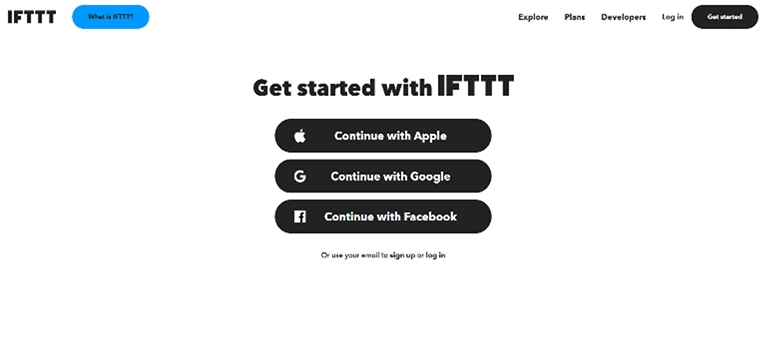 - Go to the **MyQ IFTTT page** [here](https://ifttt.com/myq_devices). Once you’ve connected to your smart garage, select **Connect** and **input your MyQ login credentials**. Although there are occasionally discounts when you can obtain IFTTT assistance for free, this does demand a **subscription charge**, which is now set at $1 every month. 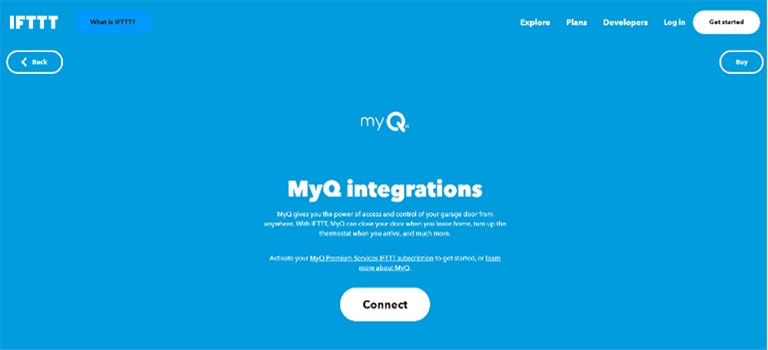 - It’s a great idea to go to the **Alexa IFTTT page** if you haven’t done that. Select Connect to **log in using the details from your Amazon account**. IFTTT needs to be connected to both platforms to function effectively. #### Look for the Correct Applets Although IFTTT invites users to create their applets, there isn’t much effort required to make **IFTTT compatible with MyQ**. The list of **popular applets** that are already available on MyQ’s IFTTT page includes one version that is very helpful for **garage doors**. - Go to the **MyQ website** and choose **Amazon Alexa**. 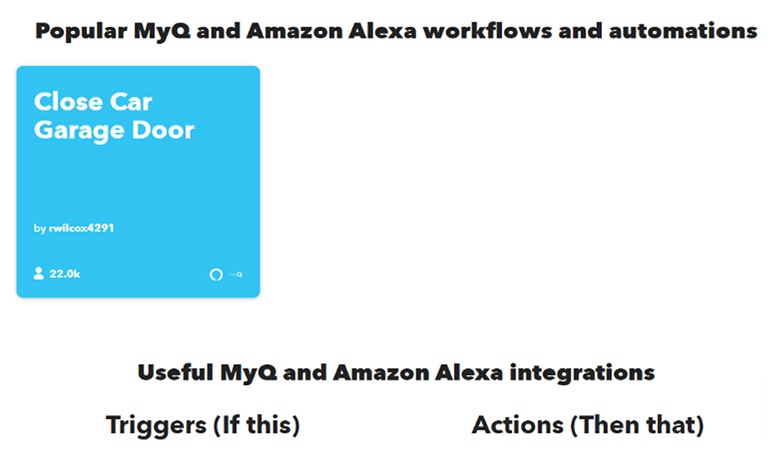 - Tap the **Close Car Garage Door applet**. - Click **Connect**. 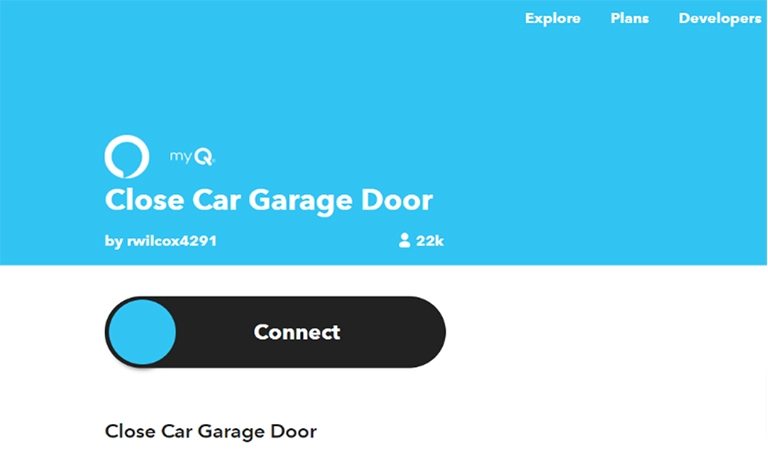 - You should now be **finished**! With the help of this applet, you should be able to **[ask Alexa](https://techrt.com/creepy-things-to-ask-alexa/) to close your car’s garage**, and MyQ will do it in response. I have been using this applet myself, and it’s so awesome how there’s already one available for everyone and their MyQ and Alexa system. #### Customize Your Applets You may now **design several applets** to regulate how Alexa communicates with your garage if you’d like to be more creative. - Open the **IFTTT app** and select **Create**. - To choose a service and view the available triggers, click “**If** **This**”, and type “**Alexa**“. 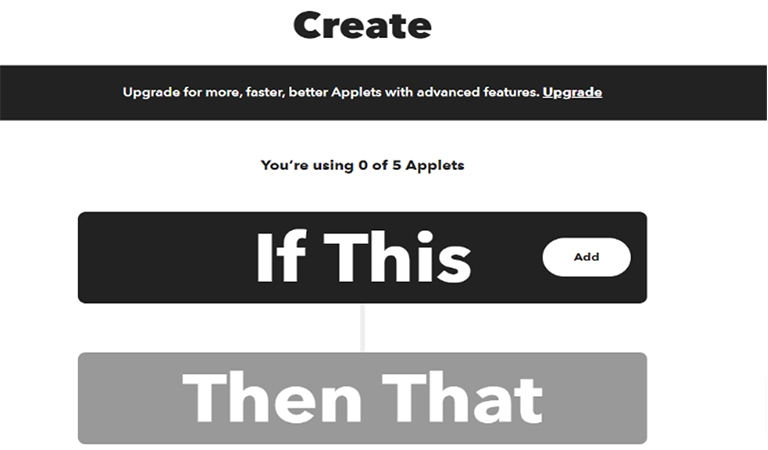 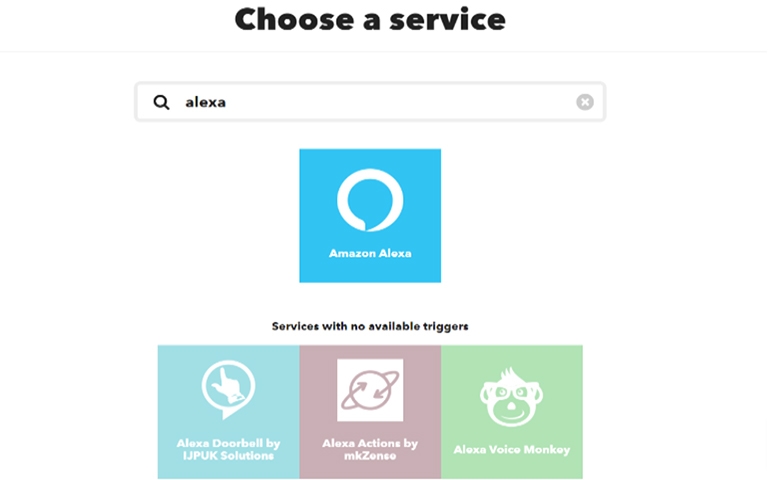 - You can select from several triggers, such as “**Say a specific word**.” As a result, you’ll be able to **customize more precise garage commands**. 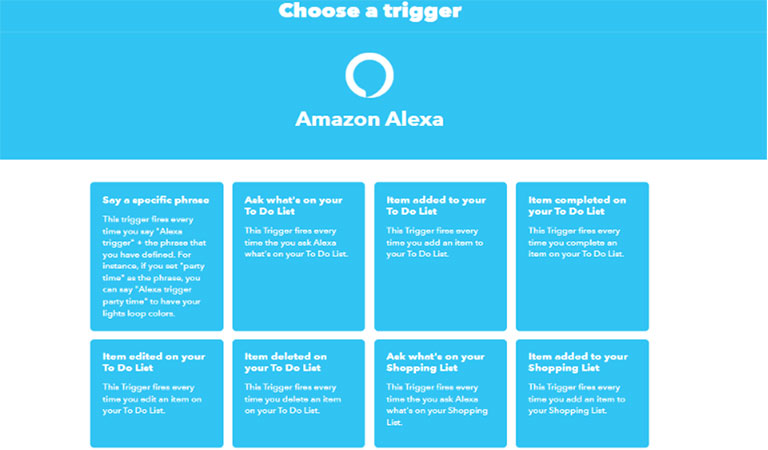 - When you’re ready, click **Then That** to proceed. Type “**MyQ**” to see potential **MyQ triggers** in the services sector. The triggers for the garage door are very straightforward, they usually open or close the door, but you can connect them to some Alexa instructions. **Be innovative**! ### 2. Connect Using SimpleCommands - Install the **SimpleCommands application** from Google Play or the Apple App Store. Additionally, you could opt to **access using a browser**. - **Set up an account**. The app will display “**Registration Complete**” after completion. Use a legitimate email address since you’ll receive a **verification [email](https://techrt.com/hotmail-not-receiving-emails/)**. 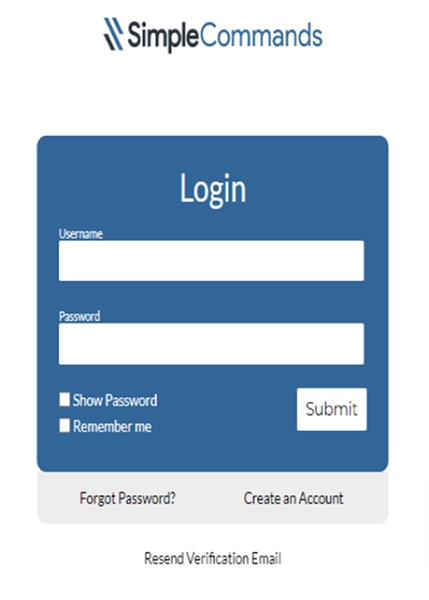 - Launch **SimpleCommands** and **sign in** using your newly created account. - You will be taken to the app’s home screen. “**MyQ – openers**” can be found under **Add/Remove Items**. After finding it tap “**Add**“. Your **MyQ email address and password** must be entered for you to **synchronize it with SimpleCommands**. 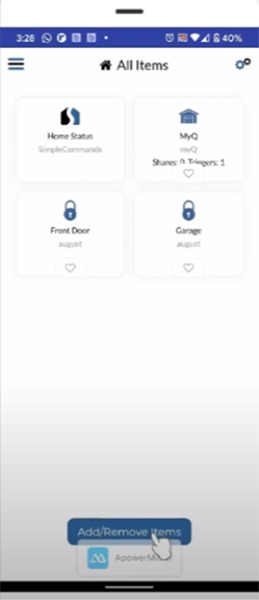 #### Go to Alexa App - Select **MORE** and tap **SKILLS and GAMES**. - Look for “**kloee for SC**” under SKILLS, then go to “**Enable** **to** **Use**“. You’ll be asked to give Alexa access to your account by inserting your **SimpleCommands password and email**. 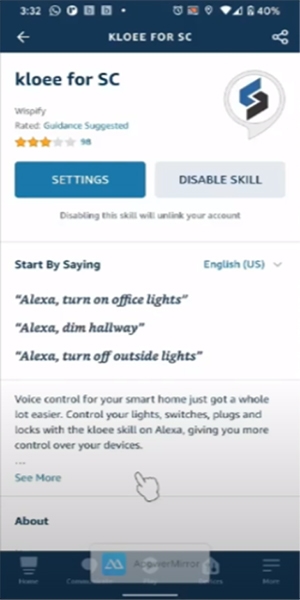 #### Back to SimpleCommands App - Click **Routines** from the menu at the upper left of the screen. - Hit **Add Routine** after naming your Routine. 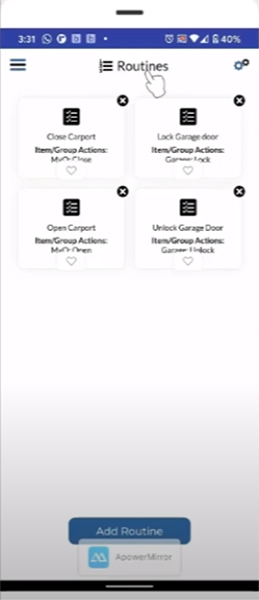 - You will then be encouraged to **select a device from a drop-down** selection of all devices connected. Select your **MyQ garage** by choosing **Add**. - Tap the **command for the garage door you wish to operate**, then select **Add Command**. - You will be taken to the **Routines** section where you’ll see the Routine you created after adding your command. If you want to **edit your new Routine**, click on it. - Click “**Enable Voice Companion Alexa and/or [Google Assistant](https://techrt.com/connect-ps4-ps5-xbox-one-with-alexa-and-google-assistant/)**” found at the lower side of the Routine edit screen. - **Add a message for the voice command** after switching Voice Trigger to “**Enabled**“. #### Go back to the Alexa app - Visit “**Devices**” on the screen’s lower side. Click on the **(+) symbol** at the upper right. - Tap “**Add Device**“. - Move down and click “**Other**“. 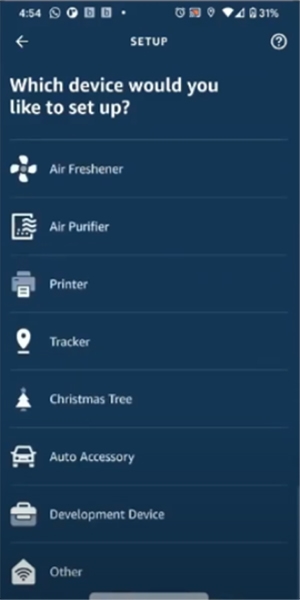 - Click “**Discover** **Devices**“. 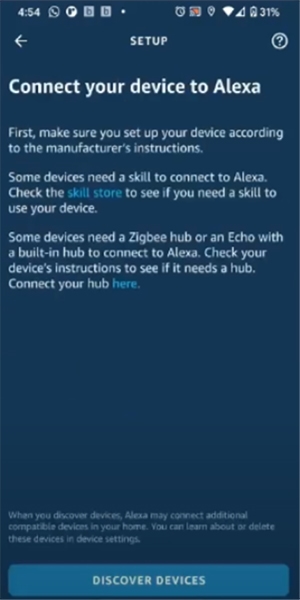 - You’ll see **“1 scene discovered**“. Tap “**Done**“. - Go to **Alexa App’s Home Screen**. - On your **menu** and tap “**Routines**“. - Include **your routine** by clicking **the (+) sign** at the upper right side. 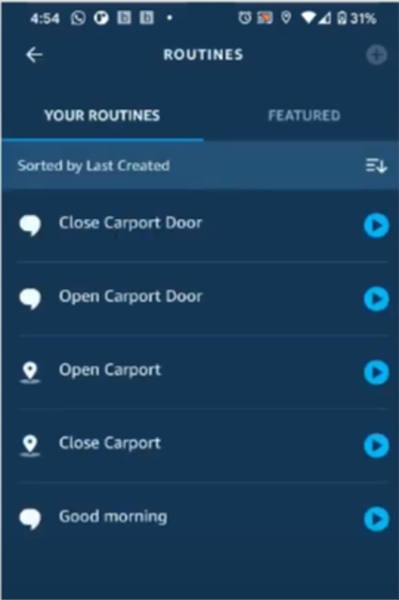 - In **Add action** click the (+) sign. 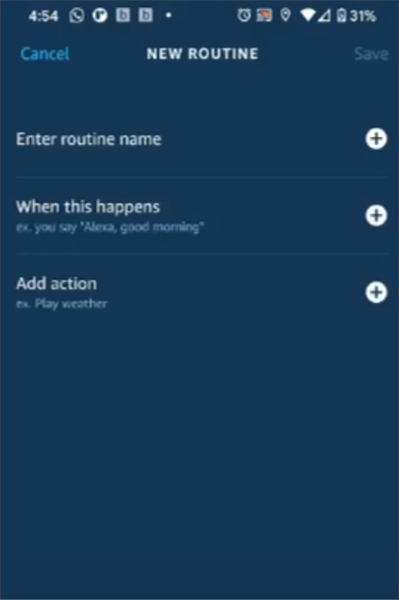 - Tap “**Smart** **Home**“. - Click “**Control** **Scene**“. - Click the **scene you created**. - Select “**Add**“. - Input your **Routine name**. Tap “**When** **this** **happens**“. Tap **voice**. Insert your **voice** **command**. Then **save your routine**. - Now you’re good to go! ### 3. Connect Using Third Party Controllers You may quickly link your Alexa to your Chamberlain MyQ by using third-party controllers. Utilizing these tools also **provides you control and access to your garage doors**, which is another advantage. **These gadgets are connected to the opener powerhead and garage door as well as your Alexa application**. This enables you to give commands to Alexa, who will communicate them to MyQ, the garage opener, to open or close your garage as you want. There are many well-liked and **effective external controllers**. The following are some of the **key characteristics you should consider** while shopping for one. - Getting access to your **operational history** - **Works with all garage openers** and multi-user access - Contains a **notification system**, **alert modules**, and an **activity log** - **Superior sensors** that are accessible from everywhere - Functions with every **Wi-Fi network** You should look into these for third-party controllers to enable **simple pairing with Alexa**, which provides **seamless functionality**. **The following two controllers can be used to establish the connection**: #### a) Nexx NXG-200 Numerous useful features are available, such as the **choice of a wireless sensor** (rather than a wired one), an **optional carbon monoxide and temperature sensor**, and **multiple user control within Nexx app**. This allows you to share access and see precisely when someone opens the door and **supports Android and Apple watches**. Additionally, you’ll receive **location-based control**, or “**Just Drive**,” according to Nexx. This enables **hands-free control** and the great feature of **setting the door to unlock whenever you approach**. #### b) Meross Smart Wi-Fi Along with Alexa, this **also works with IFTTT, SmartThings, and Google Assistant**. You may access a few extras, including **close reminders**, **auto-closing**, **history**, and other notifications, **using the Meross application**. Additionally, you can use the **Meross ability to lock and unlock the door using the simple words** “Alexa, close my garage” and “Alexa, open my garage.” ## Frequently Asked Questions  ### Is MyQ Compatible With Alexa? **Alexa and MyQ are not compatible**. According to Chamberlain MyQ, the reason for this incompatibility is **security-related**. However, you can connect both of them using the well-known SimpleCommands app or IFTTT. ### What Devices Work With MyQ? The MyQ app was built to work with **Android 7 and the latest models** and **iOS 11 and later models**. As technology develops, operating system compatibility will also advance. Your operating system may be no longer compatible if you can’t find the MyQ application within the app store. You must **update the operating system of your device** if it does not recognize your MyQ Home Control Application. ### How Far Does MyQ Work? Your router and your MyQ Wi-Fi device have to be **within 50 feet**. To **prevent interference from objects and walls**, you can move the router nearer to your garage if the Wi-Fi signal there is weak. ### How Many Doors Can MyQ Control? **MyQ can unlock two garage doors simultaneously**. ### Does MyQ Have a Monthly Fee? You must pay a monthly charge to connect your gadgets to MyQ. This cost is reasonable, coming in at just **$1 a month**. Whether you opt to pay or not, the modest charge is justifiable when you take into account the **extra safety features** you get from using the app. If you want, you can **pay $10 to cover the entire year**. Use MyQ to enjoy the security of **smart homes**. ## Wrapping Up Although MyQ is allegedly incompatible with Alexa, you may still connect easily to it and utilize it for your convenience with the help of several third-party controllers. You may also use IFTTT or the SimpleCommands application to just use voice commands to unlock and lock your garage door. Using a valid pin code to connect your MyQ to Alexa will also maintain system security by preventing shared access.